
Quick Answer: Every photo you take stores hidden metadata, including GPS location, camera details, and timestamps. Most social media platforms strip this automatically, but messaging apps like iMessage and email do not. Removing metadata yourself before sharing takes seconds and keeps your location and personal details private.
Table of Contents
Every photo you take contains hidden details called metadata, and removing it before you share is one of the easiest privacy habits you can build. This data includes where the photo was taken, when it was captured, and what device you used. When you share photos online or in a message, that information travels with the image and anyone who knows how to look can find it.
In this guide, you will learn what metadata is, why it matters, and how to remove it from your photos on any device.
What Is Metadata?
Metadata is information that your camera or smartphone automatically saves when you take a photo. It’s stored inside the image file and helps organize, sort, and describe your pictures. This data isn’t visible on the photo itself, but it can be viewed with a few clicks or by anyone who downloads your image.
Common types of photo metadata include:
- EXIF (Exchangeable Image File Format): Technical details like camera settings, date, and location.
- IPTC (International Press Telecommunications Council): Descriptive information such as captions, keywords, and copyright.
- XMP (Extensible Metadata Platform): Editing and workflow details used by software like Adobe Lightroom or Photoshop.
Together, these details can tell a clear story about how, when, and where a photo was taken.
What Photo Metadata Can Reveal
Every digital photo includes hidden metadata that can quietly expose personal details. Here’s what it may contain:
- Camera Details: Make, model, exposure settings, flash use, lens type, and sometimes a serial number.
- Date and Time: The exact time the photo was taken or edited.
- Location Data: GPS coordinates shows exactly where you were standing when you took the photo. This can include your home address if you shoot indoors, or your daily patterns if you share regularly. The risk is serious enough that the U.S. Army has published guidance on it, check out their article on how careless social networking can expose your location to adversaries.
- Editing Information: Names of photo editing apps or software used.
- Author and Copyright: Photographer name, organization, or contact details if entered.
- Embedded Previews: Small thumbnail images that can include earlier or uncropped versions of a photo.
That’s why it’s a good habit to remove or limit this data before sharing pictures online.
Does Social Media Remove Metadata For You?
You might assume that uploading to Instagram or Facebook takes care of this automatically. The answer is: sometimes, but not always, and it depends on how you share.
Most major platforms like Instagram, Facebook, X (Twitter), and Reddit all strip EXIF data from the public copy of your photo. That means random strangers can’t extract your GPS coordinates from a downloaded image. However, those platforms often keep the original metadata internally for their own use.
The riskier situations are messaging apps. iMessage does not strip metadata at all. Every photo you send through iMessage goes with its full location data intact. WhatsApp has three different sending modes, and if you send a photo as a “document” to preserve quality, the recipient gets the file exactly as it was on your device, GPS coordinates and all. Signal is the only major messaging app that strips all metadata before sending.
Email also preserves everything. If you attach a photo to an email, the recipient gets the original file, hidden data included. The safest habit is to strip the metadata yourself before sharing through any channel, rather than trusting that the platform will do it for you.
| Platform | Strips Metadata? |
|---|---|
| Yes (public copy only) | |
| Yes (public copy only) | |
| X (Twitter) | Yes (public copy only) |
| Yes (public copy only) | |
| iMessage | No |
| WhatsApp (document mode) | No |
| Email attachments | No |
| Signal | Yes |
Security Alert: iMessage does not remove photo metadata. If you’ve been texting photos through your iPhone assuming your location was protected, it wasn’t. The same goes for WhatsApp sent as a “document” and any photo attached to an email. Strip the metadata before you send.
Before you remove anything, you can check what’s actually hiding in a photo. Free tools like ExifRemover.com let you drag and drop any photo and see exactly what metadata it contains, no download or account required. Once you know what’s there, use the steps below to strip it.
How to Remove Photo Metadata Before Sharing
Windows:
Here is how to remove photo metadata on Windows in five steps.
- Right-click your photo file and choose Properties.
- Click the Details tab.
- Select Remove Properties and Personal Information at the bottom.
- Choose Create a copy with all possible properties removed, or manually select which details to remove.
- Click OK and share the cleaned copy.
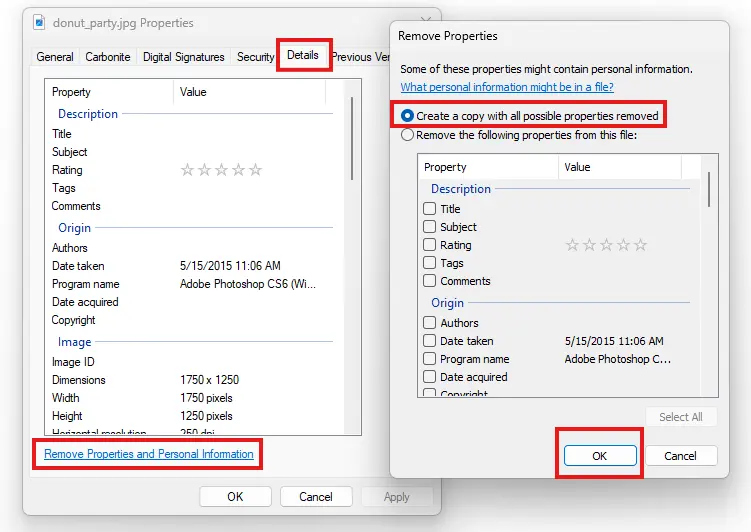
Windows lets you create a cleaned copy of your photo with all metadata removed in a few clicks.
Mac
Remove photo metadata on a Mac in five steps
- Open the image in Preview.
- Click Tools, then Show Inspector (or press Command + I).
- Go to the Info tab and open the GPS section.
- Click Remove Location Info if available.
- Save the file. For full cleaning, use a free tool like ImageOptim or ExifTool.
How to Stop Saving Location Data Automatically
iPhone (iOS)
Here is how to turn off location tagging on iPhone.
- Go to Settings → Privacy & Security → Location Services.
- Tap Camera.
- Select Never or Ask Next Time.
- To remove location data from an existing photo, open it in Photos, tap the info (ⓘ) icon, then Adjust → No Location.
Android
Turn off location tagging on Android.
- Open the Camera app.
- Tap Settings (gear icon).
- Look for Location tags, Save location, or Geo-tagging.
- Toggle it Off.
- To remove metadata later, open the photo in Google Photos, swipe up, tap Edit location, and choose Remove location.
For a broader look at how your devices collect and share information about you, see our guide on Smart Home Device Privacy Risks.
Extra Tips for Safer Photo Sharing
- Avoid posting pictures that reveal addresses, street signs, or license plates.
- Check cloud backup settings (Google Photos, iCloud) since shared links may include metadata.
- Your home Wi-Fi also plays a role in privacy. Learn how to lock it down in our Home Wi-Fi Security guide.
- Use free cleaning tools such as ExifCleaner, ImageOptim, or Photo Metadata Remover apps.
- Always upload the cleaned version when sharing online.
Real-World Risks Most People Don’t Think About
A few situations where photo metadata can cause real problems:
Selling items online. When you list something on Facebook Marketplace, eBay, or Craigslist and include photos taken inside your home, those images may contain GPS coordinates pointing to your address. Even if the platform strips metadata from the displayed image, some download paths still expose the original file.
Sharing photos with people you don’t know well. A photo sent as a message to someone you met online can tell them exactly where you were standing when you took it.
Children’s photos. Photos of kids posted publicly can reveal which school, park, or neighborhood your family frequents. Removing location data before posting is a simple habit worth building.
Quick check before you share: A free browser-based tool like ExifRemover.com lets you drag and drop any photo, see exactly what hidden data it contains, and download a clean version, all without uploading to any server.
Final Thoughts
Photo metadata is easy to overlook because you never see it in the image itself. But a single photo can quietly reveal where you live, where you spend time, and patterns about your daily routine. That is not information most people think about when they tap post.
The fix is simple. Removing metadata takes seconds, and the tools to do it are free. Once you build the habit, it becomes second nature.
The one thing to remember: don’t assume a social media platform or messaging app is doing this for you. iMessage doesn’t. WhatsApp document mode doesn’t. Email doesn’t. Strip it yourself before you share, and you stay in control.
If you want to take your privacy a step further, consider pairing this habit with a VPN. A VPN masks your internet activity so your location isn’t leaking through other channels while you’re browsing and sharing. Our Home VPN 101 guide walks through how they work and whether you actually need one.
Looking for more practical privacy tips? Browse our Online Security guides for related tips, tools, and reviews.

Ready to See Where Your Online Security Stands?
Take the free assessment now and receive personalized security recommendations in minutes. No signup required. Completely free. No gimmicks.
Photo Metadata FAQ
What is EXIF data in a photo?
EXIF stands for Exchangeable Image File Format. It is hidden information automatically saved inside a photo file when you take a picture. It can include the date and time the photo was taken, your GPS location, your camera or phone model, and settings like shutter speed and ISO.
Does iMessage remove metadata from photos?
No. iMessage is one of the few major platforms that does not strip photo metadata. Photos sent via iMessage are delivered with full EXIF data intact, including GPS coordinates. If you are sharing location-sensitive photos, remove the metadata before sending.
Does Instagram remove photo metadata when you upload?
Instagram strips most EXIF data from the public copy of your photo, so strangers can’t see your GPS location after you post. However, Instagram keeps the original metadata on its servers. To be safe, strip metadata before uploading rather than relying on the platform.
Can I remove metadata from a photo without losing quality?
Yes. Removing metadata does not affect the visual quality of the image at all. The image pixels are not changed, only the hidden data stored alongside the image is removed. Tools like ExifCleaner, ImageOptim, and the built-in Windows Properties tool all remove metadata without degrading the photo.
Does taking a screenshot of a photo remove its metadata?
Yes, a screenshot creates a new image file and the original EXIF data does not carry over. However, the screenshot will have its own timestamp and device information, and the image quality will be noticeably lower. For quality-sensitive sharing, use a dedicated metadata removal tool instead.
Is it safe to use online tools to remove photo metadata?
It depends on the tool. Some browser-based tools process your photo locally on your device and never upload the file to any server, which is the safest option. Before using any online metadata remover, check whether it processes files locally or uploads them. Tools that upload your files introduce privacy risk, which defeats the purpose. Exifremover.com removes metadata without uploading anything to their server.
How do I check what metadata is in a photo before removing it?
On Windows, right-click the file, select Properties, then click the Details tab to see what is stored. On a Mac, open the photo in Preview, go to Tools, then Show Inspector. Free online viewers like ExifRemover.com and OnlineEXIFViewer.com also let you inspect all metadata in a photo before deciding what to remove.
Does video also contain hidden location data?
Yes. Videos recorded on smartphones often embed the same GPS and device metadata as photos. Most social platforms strip this from public video the same way they do for photos, but messaging apps and email typically preserve it, so the same removal habits apply to video files too.
Your photos may be sharing more than you think, including location data hidden in metadata. Ironically, this article is probably worth sharing with someone who posts a little too much online.

Michael Kendrick
Director of IT and former Certified Registered Locksmith with 27 years in technology and cybersecurity. Practical, everyday guidance to help you protect everything from the locks on your doors to the logins on your accounts.
Keep Learning: More Security Guides

Is My Phone Listening to Me? The Truth Explained
Wondering “is my phone listening to me?” Learn what your phone actually tracks, why you see targeted ads, and how to protect your privacy without paranoia.
Identity Theft 101: How to Protect Yourself
Identity theft affected over 1.1 million Americans in 2024 alone. This plain-English guide explains how identity theft happens, the warning signs to watch for, and the exact steps you can take

Smart Home Device Privacy: What They Collect and How to Stop It (2026)
Smart home devices are convenient, but they can also be surprisingly chatty. From voice assistants to robot vacuums, here is what your devices actually collect, who sees that data, and practical