
Table of Contents
The average person manages somewhere between 70 and 150 online accounts, with some estimates reaching even higher. Email, banking, shopping, social media, streaming services, work logins, and everything in between. Each one needs a password. And if you’re doing it right, each one needs a different, strong password.
That’s impossible to remember. So most people don’t even try. They reuse the same handful of passwords everywhere, maybe adding a number or exclamation point to feel better about it. The problem is, when one site gets hacked and your password leaks, hackers try that same password on every other site they can think of. One breach becomes ten breaches.
This is where password managers come in. They solve the impossible problem of creating strong, unique passwords for everything without having to remember any of them. If you’ve ever wondered what password managers actually are, how they work, or whether you need one, this guide breaks it down in plain language.
What Is a Password Manager?
A password manager is a secure app that stores all your login credentials in an encrypted digital vault. You create one master password to unlock the vault, and the app automatically generates, saves, and fills in your username and password whenever you log into a website or app. You only need to remember one password. The manager handles everything else.
Key things a password manager does:
- Stores all your passwords in an encrypted vault
- Generates strong, unique passwords for every account
- Automatically fills in your login information on websites
- Syncs your credentials across all your devices
- Alerts you if a stored password appears in a data breach
Why You Need One (The Problem It Solves)
Password reuse is the number one way people get hacked. You might have a strong password, but if you use it on ten different sites and just one of those sites gets breached, that password is now out in the world. Hackers use automated tools to try stolen passwords on thousands of other websites. It’s called credential stuffing, and it works because people reuse passwords.
Your brain simply isn’t designed to remember dozens of complex, unique passwords. Studies show that people can realistically remember maybe seven pieces of random information. Expecting yourself to remember “Kj#9mP2$qL” for your bank, “vN8!rT4@wQ” for email, and 98 other variations is setting yourself up to fail.
This is where password managers become essential. They let you use truly strong, completely unique passwords for every single account without the burden of remembering them. For a deeper look at why password security matters in the first place, check out our guide on Password Security 101: The Keys to Your Kingdom.
The reality is that data breaches happen constantly. Major companies, small websites, and everything in between get hacked. It’s not a matter of if your credentials will be exposed somewhere, it’s a matter of when. A password manager limits the damage to just that one site instead of cascading across your entire digital life.
Your First Step to Better Security
If you want a quick win for your online security, start with a password manager. Our top recommendation is NordPass, and our full review shows you how to get set up step by step.
How Password Managers Work
At the core, a password manager works through one master password. This is the single password you need to remember. When you create your master password, the password manager uses it to encrypt (scramble) all your other passwords into an unreadable format. Only your master password can decrypt (unscramble) them back into usable form.
Here’s what happens step by step when you use a password manager:
First time setup: You install the password manager app on your phone and computer, and add a browser extension. You create your master password. This is the one password you’ll need to remember, so make it strong but memorable.
Adding passwords: When you log into a website, the password manager notices and asks if you want to save that login. Click yes, and it stores the username and password in your encrypted vault. Or, you can manually add accounts.
Logging in later: Next time you visit that website, the password manager recognizes the login page and automatically fills in your username and password. On most sites, you just click the login button and you’re in. On others, you might click a small icon in the password field that fills everything for you.
Creating new accounts: When you sign up for something new, the password manager offers to generate a password for you. These generated passwords are long, random strings like “X9$mK2#pQv8&nL4@rT” that are impossible to guess or crack. You’ll never need to remember them, so you want them to be as complex as possible.
Syncing across devices: Your encrypted password vault syncs to the cloud and across all your devices. Log into your password manager on your phone, and you have access to all the same passwords you use on your computer. Everything stays in sync automatically.
Using on mobile devices: Password managers work seamlessly on phones and tablets. Many support biometric unlock, meaning you can use Face ID, fingerprint, or other biometric authentication instead of typing your master password every time. This makes mobile access fast and convenient while keeping everything secure.
Your Data Is Encrypted
When you store passwords in a password manager, they’re encrypted. Think of encryption like a super-secure lock that scrambles your data into unreadable code. Even if someone got access to the password manager’s servers, all they’d see is gibberish.
Most password managers use something called 256-bit AES encryption. This is the same level of security that banks and governments use. It’s incredibly strong and would take billions of years to crack with today’s technology.
Some password managers go even further. For example, NordPass uses XChaCha20 encryption, which is a newer, even more secure standard that’s particularly good at protecting your data. We dive into the technical details in our full NordPass review.
The important takeaway is that your passwords are scrambled so thoroughly that even the password manager company can’t read them. This is called zero-knowledge encryption, which means only you, with your master password, can unlock and see your stored passwords.
Key Features to Understand
Modern password managers do a lot more than just store passwords. Here are the features you’ll actually use:
Password Generator: Creates random, strong passwords instantly. When signing up for a new account, click the generate button and you get something like “mK9$pL2@vN8#qT.” You’ll never see or type that password again, the manager handles it. Most generators let you adjust the length and choose whether to include symbols.
Auto-Fill: Recognizes login pages and automatically fills in your credentials. On most sites, this happens instantly. On others, you click a small icon in the password field. Either way, you’re not typing passwords manually anymore.
Secure Notes: Stores other sensitive information beyond passwords. You can save credit card numbers, bank account details, passport information, software license keys, or any other text you need to keep secure. All of it gets the same encryption as your passwords.
Password Sharing: Lets you securely share logins with family members or coworkers. Instead of texting someone a password (which is wildly insecure), you share it through the password manager. They get access to the login, but the password itself stays encrypted. You can revoke access anytime.
Emergency Access: Sets up a trusted contact who can access your vault if something happens to you. This is critical for situations like sudden death or medical emergencies. Without this feature enabled, your family can be locked out of important financial accounts, business information, and even personal photos forever. There’s usually a waiting period (you set the number of days) so if you’re just unavailable temporarily, you can cancel the request. But if you’re truly unable to access your accounts, your designated person can get in. This solves the problem of spouses being locked out of deceased partners’ phones and accounts with no way to recover critical information.
Security Audit: Scans your saved passwords and flags problems. It tells you which passwords are weak, which ones you’re reusing across multiple sites, which ones have been compromised in known data breaches, and which accounts don’t have two-factor authentication enabled. Think of it as a checkup for your password health.
Two-Factor Authentication: Adds extra security to the password manager itself. Even if someone somehow got your master password, they still can’t access your vault without the second factor (usually a code from your phone). Definitely turn this on.
Dark Web Monitoring and Breach Alerts: Many paid password managers include a feature that continuously scans known data breach databases and alerts you if any of your stored email addresses or passwords have shown up in a breach. Think of it as a smoke detector for your credentials. Instead of finding out your banking password was leaked when someone drains your account, you get a notification the moment that password appears in stolen data that is circulating online. You can then change just that one password before any damage is done. This feature alone is worth the cost of a paid subscription for many users.
Are Password Managers Safe?
This is the biggest question people have, and it makes sense. You’re putting all your passwords in one place. What if that one place gets hacked?
Here’s the reality: password managers are safe when used correctly, and they’re far more secure than reusing passwords, writing them down, or relying on weak passwords you can remember.
In fact, they’re significantly safer than the habits many people fall back on, like reusing the same password everywhere or choosing passwords that are easy to remember but easy to crack.
The encryption used by reputable password managers means that even if the company’s servers were breached, the attackers would only get encrypted data. Without your master password, that data is useless. It’s like stealing a safe but not having the combination. Companies that make password managers use zero-knowledge encryption, meaning they themselves cannot decrypt your vault even if they wanted to.
Your master password never leaves your device in an unencrypted form. When you type it in, it’s used locally on your computer or phone to decrypt your vault. The password manager company never sees it, never stores it, and can’t recover it if you forget it.
The weak point in a password manager setup is almost always the master password itself. If you make it weak or reuse a password you’ve used elsewhere, that’s a problem. If you write it down on a sticky note and stick it to your monitor, that’s a problem. If you need to write down your master password while you’re learning it, keep it somewhere secure like your wallet, purse, or better yet, a safe. Never leave it visible or in an obvious spot. If you fall for a phishing scam and type your master password into a fake login page, that’s a problem.
But the password manager itself, when used properly, is extremely secure. The math behind modern encryption is solid. There hasn’t been a case of a major password manager being hacked and user vaults being decrypted. Breaches have happened at password manager companies, but the encrypted vaults remained secure.
The realistic threat model is this: you’re far more likely to get hacked through password reuse, weak passwords, or phishing than you are through a properly configured password manager. It’s not perfect, but it’s dramatically better than the alternative.
Free vs. Paid: What’s the Difference?
Most password managers offer both free and paid versions. The free versions are genuinely useful and cover the basics. The paid versions add convenience and advanced features.
Free versions typically include:
- Unlimited password storage
- Password generator
- Auto-fill on one type of device (either mobile or desktop, not both)
- Basic security features
The biggest limitation with free versions is that you’re often restricted to one device type. If you use both your phone and your computer, you’ll need to log out on one and log back in on the other every time you switch. This gets inconvenient fast if you move between devices regularly throughout the day.
Paid versions typically add:
- Sync across all your devices (phone, tablet, computer)
- Secure password sharing with others
- Emergency access features
- Priority customer support
- Advanced security reports and monitoring
- More secure note storage
- Encrypted file attachments
For a single person who mostly uses one device, the free version may be OK. If you want your passwords available everywhere, or if you need to share accounts with family members, paid versions make sense. Most plans are relatively inexpensive, running between $3 and $5 per month for individuals, and family plans that cover multiple people are usually $5 to $8 per month. And with a little searching, it’s about a guarantee you can find an awesome deal for the first year of service, often 50 to 75% off.
There’s no wrong choice here. Starting with a free version and upgrading later if you need more features is a perfectly reasonable approach. I started with NordPass’s free version for a while, but I move around on devices often, so after a while I upgraded to a paid version and I was glad I did as it made everything work much smoother.
The Concerns Worth Taking Seriously
Most worries people have about password managers dissolve quickly once they understand how the technology works. But a few concerns are legitimate and deserve understanding, not just reassurance.
Your Master Password Is the One Thing You Cannot Lose: This is the genuine weak point in the whole system, and it is worth being direct about it. Because of zero-knowledge encryption, there is no password reset option. The company cannot help you. If you forget your master password and have no recovery codes and no emergency access contact configured, you lose access to your vault. Full stop.
I learned about this pain firsthand while testing a password manager. Thankfully it was only a test account with a handful of logins, so the damage was minimal. But resetting that account made it immediately clear how painful that would be with a real personal account holding hundreds of logins. This is not something you want to find out the hard way.
The solution is straightforward. Create a master password that is long, memorable, and completely unique. A passphrase made of random words (like “correct horse battery staple” but personalized to you) works better than a string of characters you will forget. This approach aligns with NIST password guidelines which emphasize length over complexity. Write it down. Store that piece of paper somewhere physically secure like a home safe or a locked drawer, not on a sticky note near your computer. Once you are confident you have memorized it, you can shred it. Also generate your emergency recovery codes during setup and store those in the same secure place.
Finally, set up the emergency access feature. Enter a trusted family member who can access your vault if needed. This not only helps if you forget your password, but also ensures your family is not locked out of critical accounts if something happens to you.
Do these things and the risk drops to nearly zero.
Putting Everything in One Place: The “all your eggs in one basket” concern is the one skeptics raise most often, and it is a fair thing to think about. If someone got into your password manager vault, they would have access to everything.
The reason this concern does not hold up in practice is that the basket is extraordinarily secure. Breaking into a properly encrypted vault protected by a strong master password and two-factor authentication is not a realistic attack vector for anyone targeting a regular consumer. The far more common real-world attack is credential stuffing, where hackers take a password leaked from one site and automatically try it on hundreds of others. Reusing passwords across sites is the actual vulnerable basket. A password manager eliminates that risk entirely.
The math here is not close. The risk of having your vault compromised is much lower than the near certainty of eventually having a reused password exposed in a breach somewhere. The vault you are already using, whether that is your memory, your browser, or a sticky note, is far less secure than what a dedicated password manager provides.
Getting Started: The Basics
If you’re ready to start using a password manager, here’s the simple path forward:
Choose a password manager. Research a few options and pick one that fits your needs. Browser-based options like the ones built into Chrome or Safari are easy to start with. Dedicated apps like NordPass, Bitwarden, 1Password, or Keeper offer more features and security. Our NordPass review walks through one popular option I personally recommend in detail.
Create a strong master password. This is the one password you need to get right. Make it long (12 characters minimum, but I recommend 14 to 16), unique (never used anywhere else), and memorable (you may need to type it often). A passphrase made of random words works well, like “stapler gravity penguin flannel” with some capitalization and numbers mixed in. Read our Password Security 101 Guide for more details on passwords.
Install the apps and browser extension. Download the password manager app on your phone and computer, and add the browser extension to whatever browser you use. Log in with your master password on each device. Most password managers make setup painless and walk you through all the steps.
Start saving passwords gradually. As you log into sites over the next few days, let the password manager save those credentials. Don’t try to add everything at once. Let it happen naturally.
Import existing passwords. Most password managers can import passwords you already have saved in your browser (Chrome, Safari, Edge, Firefox) or from another password manager. This makes the transition much easier. You can usually find the import option in the settings menu. It takes just a few minutes and saves you from manually entering dozens of passwords.
Use the password generator going forward. When you create new accounts or change existing passwords, use the built-in password generator. Let it create long, random passwords that you’ll never need to remember.
Enable two-factor authentication on the password manager itself. This adds an extra layer of security to your password vault. Even if someone got your master password, they couldn’t access your vault without the second factor.
The hardest part is just getting started. Once the password manager is set up and you’ve saved a few passwords, it becomes automatic. You’ll wonder how you ever managed without it.
What Are Passkeys and How Do They Fit In?
Passkeys are a newer type of login credential designed to replace traditional passwords entirely. Instead of typing a password, your device verifies your identity using biometrics like Face ID or your fingerprint, or a PIN stored on your device. The website then confirms the login without a password ever being transmitted over the internet.
This matters for password manager users because you’ll want one that supports passkeys. Most reputable options already do, including NordPass and 1Password. Think of passkeys as the next evolution of passwords. You don’t need to change anything right now, but as more sites adopt them, your password manager will handle the transition automatically. The same vault that stores your passwords today will manage your passkeys tomorrow.
Browser-Based vs. Dedicated Password Managers
Most people already use a type of browser-based password manager without realizing it. When Chrome or Safari asks “Would you like to save this password?”, that is their built-in password manager at work. These built-in tools are convenient and better than nothing, but they have real limitations.
Browser-based managers are tied to one browser. If you use Chrome on your laptop but Safari on your phone, your passwords do not always follow you. They also typically offer weaker encryption, no secure sharing, no emergency access features, and no dark web breach monitoring. If someone gains access to your unlocked browser, they can usually see all your saved passwords in plain text through the browser settings.
A dedicated password manager work across every browser, every device, and every operating system. Your vault follows you everywhere, and the security features are significantly more robust. For most people who use more than one device or browser, the dedicated app is worth the small monthly cost.
What Password Managers Don’t Do
Password managers are powerful tools, but they’re not magic security solutions. They don’t protect you from phishing. To sharpen your ability to spot bad emails, see our How to Spot Scam Emails article. If you’re tricked into entering your credentials on a fake website that looks like your bank, the password manager might not catch it. However, password managers are based on the URL, so if you’re not at the correct URL, it won’t auto-populate your password. For example, if a phishing site uses “bank0famerica.com” (with a zero instead of the letter O) instead of the real “bankofamerica.com,” your password manager won’t fill in anything. This does offer a small amount of additional security against spoofed websites. Get in the habit of always looking at a URL before logging in to a site. This simple habit will help you catch fake sites before you hand over your credentials.
They don’t replace common sense. If someone calls claiming to be from tech support and asks you to share your screen or read out a code, a password manager won’t stop you from making that mistake. You still need to stay skeptical of unsolicited requests.
They’re not antivirus software. Password managers handle credentials, but they don’t scan for malware, block malicious websites, or protect you from viruses. You still need basic security practices like keeping your operating system updated and not downloading suspicious files.
Security is about layers. A password manager is but one important layer that solves the password problem. It works best alongside other security practices like two-factor authentication, antivirus software, VPNs for public Wi-Fi, being cautious about phishing attempts, keeping your operating system and software updated, securing your home Wi-Fi network, and thinking twice before clicking on links or downloading attachments.
Passkeys are also worth knowing about. They go a step further than passwords by eliminating them entirely on sites that support them, and your password manager will handle them the same way it handles your passwords today. Our passkeys guide explains how they work and how to set them up.
Final Thoughts
Password managers solve one of the most common and costly security mistakes people make: reusing passwords across multiple accounts. By storing all your credentials in an encrypted vault and filling them in automatically, they remove the impossible burden of memorizing strong unique passwords for every site you use.
As someone who has spent more than two decades working across both physical security and IT, I can tell you that password managers are a must have for anyone who values their financial accounts, personal data, or digital identity. The tools are affordable, beginner-friendly, and far more secure than anything most people are currently doing.
You do not need to switch everything over in one afternoon. Start with your most important accounts, your email, your bank, and your primary shopping account. Let the password manager save credentials as you naturally log in over the next few weeks. Within a month, most of your accounts will be covered without any heroic effort.
And if you ever suspect your accounts or identity have been compromised, lock things down quickly. Change your passwords, enable two-factor authentication, and consider placing a credit freeze to prevent new fraud.
If you want a strong place to start, our NordPass review walks through one of the most user-friendly options available. And when you are ready to understand the broader picture of how passwords fit into your overall security, the Password Security 101 guide covers everything from creating strong passwords to enabling two-factor authentication.
The only bad move is doing nothing. Pick a password manager, get it set up, and you will have solved one of the biggest vulnerabilities in your digital life.
Explore more Online Security guides for related tips, tools, and reviews.
Password Managers FAQ
Can I share passwords with family?
Yes, most password managers include secure sharing features. You can share individual passwords or entire folders with family members. They get access to the login without ever seeing the actual password in plain text. You can revoke access anytime. This is especially useful for shared accounts like streaming services, utilities, or joint bank accounts.
What if the company goes out of business?
Most password managers let you export your passwords to a file. If the company shuts down, you’ll have time to export everything and move to a different password manager. That said, pick a well-established password manager with a solid track record and a sustainable business model. The major players have been around for years and are not going anywhere.
Do I have to change all my passwords at once?
Absolutely not. Start small. Install the password manager and let it save passwords as you naturally log into sites over the next few weeks. When you have a few minutes, you can go to important accounts (email, banking, shopping) and change those passwords to strong generated ones. But there’s no rush to do everything immediately. Even using a password manager for just your most important accounts is a major security upgrade.
What about banking apps and sensitive sites?
Password managers work with banking sites and sensitive accounts just like any other site. Banks use the same login systems as everyone else. If you’re nervous about it, you can start by using the password manager for less critical accounts and add banking later once you’re comfortable. But there’s no technical reason to avoid using a password manager for any type of account.
What is zero-knowledge encryption in a password manager?
Zero-knowledge encryption means the password manager company has no ability to read or access your stored data. Your vault is encrypted on your device before it ever reaches their servers. Even if their servers were breached, attackers would only see scrambled, unreadable data. This is why it’s important to keep track of your master password, because even the company won’t be able to help you if you lose it.
What is the difference between a free and paid password manager?
Free versions usually cover the basics like unlimited password storage and a password generator, but they often restrict syncing to a single device type. Paid plans unlock cross-device sync, secure sharing, dark web monitoring, emergency access, priority support, and more. Since they only cost a few dollars a month, it’s generally worth upgrading to a paid plan.
What’s the difference between a password manager and a browser’s built-in password saver?
A browser’s built-in password saver is convenient, but it’s pretty basic. It usually just stores and auto-fills passwords within that one browser. A dedicated password manager is more secure and full-featured. It works across all your devices and browsers, generates strong passwords, can store other things like notes and payment info, and often includes extras like breach monitoring and secure sharing.
Password managers are one of the most effective and inexpensive security tools out there, yet most people still don’t use one. If this article helped you understand them better or finally get started, consider sharing it with others.

Michael Kendrick
Director of IT and former Certified Registered Locksmith with 27 years in technology and cybersecurity. Practical, everyday guidance to help you protect everything from the locks on your doors to the logins on your accounts.
Keep Learning: More Security Guides

What Are Passkeys? How They Work and Why They Matter (2026)
Passkeys are replacing passwords across the web, and for good reason. Learn what they are, how they work, and how to start using them to lock down your accounts today.
Two-Factor Authentication 101: Your Second Line of Defense
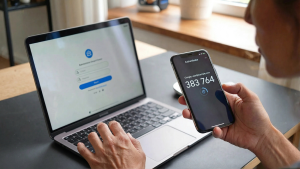
Two-factor authentication (2FA) explained in plain language. Learn what it is, how it works, which method is strongest, and how to set it up on your most important accounts in minutes.

Password Security 101: The Keys to Your Kingdom
Your passwords are the keys to your entire digital kingdom. Learn how to build strong, memorable passwords, use a password manager, and add extra layers of defense with 2FA.