
Table of Contents
If someone got hold of your password right now, how long would it take them to get into your email, your bank, or your social media accounts? If the answer is ‘instantly,’ you have a problem, but thankfully there is a fix. Two-factor authentication, or 2FA, is one of the most practical security upgrades any regular person can make, and it does not require being a tech expert. This guide covers exactly what it is, why it matters, and how to turn it on today.
What Is Two-Factor Authentication?
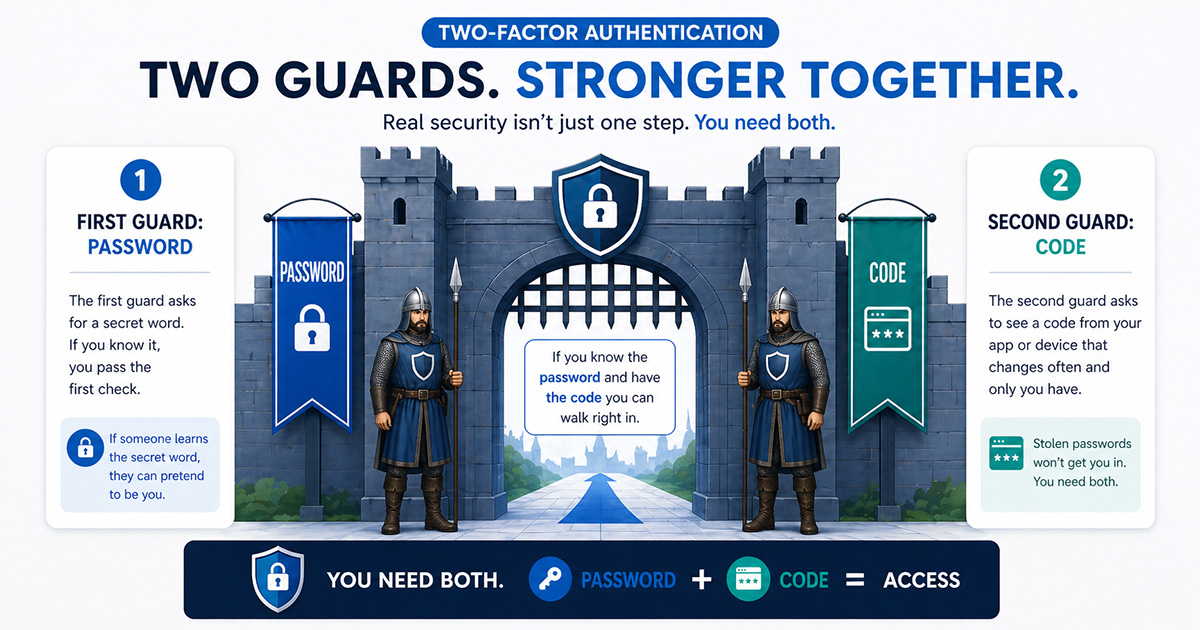
Two-factor authentication (2FA) is a login security method that requires two separate forms of identity verification before granting access to an account. The first factor is typically your password. The second is something only you can access in the moment, such as a code from an authenticator app, a text message, or a physical security key. Even if someone steals your password, they cannot log in without that second factor.
A simple way to picture it: imagine your account is a castle with two guards at the gate. The first guard checks your password. The second guard checks your phone for a one-time code. A thief might steal your password, but without your phone, they are stopped cold at that second checkpoint.
2FA vs. MFA: Clearing Up the Confusion
Two terms get thrown around interchangeably here, and it is worth knowing the difference. 2FA stands for Two-Factor Authentication, meaning you use exactly two different kinds of proof to log in. MFA stands for Multi-Factor Authentication, meaning two or more. All 2FA is MFA, but not all MFA is 2FA. In everyday conversation people use them the same way, and for most people the distinction does not matter much.
Those “factors” fall into three basic categories: something you know (like a password), something you have (like your phone or a security key), and something you are (like a fingerprint or face scan). 2FA just means combining any two of them.
A typical login looks like this: you enter your password, then enter a short code from an app or a text message. Without both, the login fails. Two checks are better than one.
How the Code Is Actually Generated
When you use an authenticator app, the code you see every 30 seconds is not sent over the internet. It is generated directly on your phone using a shared secret key and the current time. This is called a TOTP code, which stands for Time-Based One-Time Password. Think of it as a combination lock where both you and the website’s server know the same combination sequence, and the sequence automatically rotates every 30 seconds. Because the code only works for that brief window and only on the real website, a hacker who steals it seconds later cannot use it. This is a big part of why authenticator apps are meaningfully more secure than SMS codes.
Why You Need 2FA
During my years working in IT, I’ve seen this same scam play out dozens of times. Here’s how it usually goes: You get an email from someone you know. A customer, a vendor, a coworker, maybe even a friend. It includes their real signature, and sometimes even a forwarded message that makes it look like you were already in the middle of a conversation. Everything looks completely normal.
The email contains a link. You click it, and what appears to be a perfectly legitimate Microsoft 365 login page pops up asking for your email and password. But the site isn’t real. If you look closely at the URL, you’ll see it’s not actually Microsoft.com. It might be something similar, like microsofft-login.com or office365-verify.net. Close enough to fool you at a glance, but not a real Microsoft domain.
You enter your credentials and hit login. Often it fails, because the page is only there to capture your email and password. It then redirects you to the real site, where your next attempt works, and you assume you just mistyped something. The more sophisticated versions may not fail at all. They can capture your credentials and log you in seamlessly, so nothing seems out of place.
What often happens is that email came from your contact’s real email address because they got hacked first. Now the hacker is using their account to send the same scam to everyone in their contact list, including you. If you want tips on how to spot these kinds of scams, read my article on identifying scam emails or if you are wondering whether your email is already at risk, read our guide on signs your email has been compromised.
If you don’t use two-factor authentication, the hacker can now just log in and gain complete control of your account. They can read your messages, send emails as you, reset passwords to your other accounts, and continue the cycle by scamming everyone you know in your contact list.
But if you use 2FA? Even though you just gave away your password, the hacker still can’t log in. Why? Because they don’t have your phone. They don’t have that second factor. You dodged a bullet.
That’s the power of two-factor authentication. It’s your safety net for when everything else fails.
Passwords get compromised constantly. Data breaches leak millions of passwords every year. People reuse the same password across multiple sites. Phishing emails like the one I just described trick people into handing over their login credentials. Even strong, unique passwords aren’t bulletproof.
Microsoft has reported that accounts with MFA enabled block more than 99.9% of automated credential attacks. That figure comes from their own analysis of account compromise incidents across their platform.
What 2FA Protects You From
Someone who phished your password. Like in our example above, you fell for a fake login page. With 2FA, the hacker gets your password but can’t do anything with it.
Someone who bought your password on the dark web. After a data breach, your information can be used for identity theft or sold online. With 2FA, that stolen password is practically worthless.
A family member, ex, or coworker who knows your password. Maybe you shared it once, or they watched you type it. With 2FA, knowing the password isn’t enough.
Credential stuffing attacks. Hackers use automated tools to try stolen username and password combinations across hundreds of sites. 2FA stops these attacks instantly.
What 2FA Cannot Stop
SIM swapping. If you use SMS text messages for 2FA and someone convinces your phone carrier to transfer your number to their device, they can intercept your codes. This is rare but real, which is why SMS isn’t the best option.
Sophisticated targeted attacks. If a skilled hacker is specifically going after you with custom malware, AI-powered scam, or social engineering, 2FA makes their job much harder but not impossible.
Malware on your device. If your computer or phone is already infected with spyware, that malware might be able to steal your second factor too which is why keeping your devices updated, running basic security software, and securing your home network still matters. This is especially true for smart home devices, which collect and share more data than most people realize. Our smart home device privacy guide covers what they collect and how to lock things down.
Even with its limitations, 2FA remains one of the most effective security upgrades you can make. It isn’t perfect, but it is far more secure than relying on passwords alone and will stop the vast majority of account takeover attempts, even if your password is compromised.
"One of the easiest security upgrades you can make is 2FA."
- Michael Kendrick
The Different Types of 2FA (From Weakest to Strongest)
Not all 2FA is created equal. Here are the main types, ranked from least secure to most secure.
SMS Text Message Codes
This is the most common type. When you log in, the site sends a six-digit code to your phone via text message. You type that code into the login screen to prove you have access to that phone number.
Pros: It’s simple. It works on any phone, even flip phones. You don’t need to download an app or buy anything. Most people already know how to receive a text.
Cons: SMS codes are vulnerable to SIM swapping, where a hacker convinces your phone carrier to transfer your number to a new SIM card they control. SMS also requires cell signal, which can be a problem in basements, rural areas, or when traveling internationally. Many security agencies (FBI, CISA) now recommend not using SMS for 2FA when possible, because of interception and other weaknesses.
When it’s okay to use: For low-risk accounts like a forum login or a shopping site you rarely use. It’s better than nothing.
When to avoid it: For your email, banking, or anything tied to money or identity. If you have the option for something stronger, take it.
Email Codes
Some sites send a code to your email address instead of your phone. You check your email and type in the code.
Pros: Works anywhere you can access email. No phone required.
Cons: If someone hacks your email, this method fails completely. It’s also slower than other methods since you have to open a separate app or tab.
Best for: As a backup option only, not your primary 2FA method. If your email itself is protected by a stronger form of 2FA, then email codes for other accounts can work in a pinch.
Authenticator Apps
This is the sweet spot for most people. Authenticator apps live on your phone and generate six-digit codes that change every 30 seconds. You don’t need cell service or an internet connection. The codes are generated locally on your device using a time-based algorithm.
Popular options include Google Authenticator, Microsoft Authenticator, and Authy. They’re all free.
How it works: When you set up 2FA on a website, you scan a QR code with the app. From that point on, the app generates codes for that account. When you log in, you open the app, find the account, and type in the current code.
Pros: Not vulnerable to SIM swapping. Works offline. Free. More secure than SMS. Fast once you get used to it.
Cons: If you lose your phone and didn’t back up the app, you’re locked out. Some authenticator apps (like Google Authenticator) don’t sync across devices by default, though newer versions have added cloud backup. Authy does sync automatically, which is convenient but slightly less secure.
Setup basics: Download the app. When a website offers 2FA, choose the authenticator app option. Scan the QR code. Save the backup codes the site gives you (more on this later). Done.
Best for: This is what I recommend for most accounts for most people. It’s secure, free, and not much harder than SMS once you get the hang of it.
Push Notifications
Some services, particularly Google, skip the code entirely and send an “Is this you?” prompt directly to your phone when someone tries to log in. You tap Yes or No. It is slightly easier than typing a six-digit code and is considered roughly as secure as an authenticator app. The downside is that it requires an internet connection on your phone, and some people have accidentally tapped Yes when they should not have. If you see a push notification you did not trigger, tap No immediately and change your password.
Hardware Security Keys
These are small physical devices, usually a USB stick or something that connects via NFC (near-field communication, the same technology that lets you tap your phone to pay). You plug the key into your computer or tap it against your phone to authenticate.
Popular options include YubiKey and Google Titan. They cost anywhere from $25 to $70 depending on the model.
How they work: When you log in, the site asks you to insert or tap your security key. You do that, and you’re in. No codes to type. No apps to open.
Pros: This is the strongest widely available form of 2FA. Security keys are phishing-resistant, meaning even if you enter your password on a fake site, the key won’t work there because it verifies the actual web address. They have no batteries to die. They’re nearly impossible to remotely hack.
Cons: They cost money. You can lose them (though you should register a backup key). Not every website supports them yet, though major sites like Google, Microsoft, Facebook, and most banks do.
Best for: High-value accounts for people who are comfortable with tech. If you’re protecting financial accounts, business email, or anything where a breach would be devastating, a hardware key is worth the investment. Buy two and keep one in a safe place as a backup.
What About Passkeys?
Passkeys are worth a quick mention here because they are quickly gaining in polularity. The short version: a passkey combines your login and your second factor into a single step tied to your device and your fingerprint or face unlock. They are phishing-resistant by design, which puts them in the same security tier as hardware keys.
For most accounts today, an authenticator app is still your go-to. But passkeys are the direction things are heading, and if a site offers you the option to save one, it is worth doing. For a deeper look at how passkeys work and which password managers already support them, see the Password Manager 101 guide.
Biometrics (Fingerprint, Face Recognition)
Most modern phones and laptops can unlock using your fingerprint or face. Some services use this as part of their 2FA process.
How it works: On your phone or laptop, you verify your identity with your fingerprint or face, and that unlocks access to stored credentials or generates an authentication token.
Pros: Super convenient. Hard to fake (though not impossible). Fast.
Cons: Not always considered true 2FA depending on how it’s implemented. Some systems store your biometric data locally (good), while others send it to a server (less good). If your fingerprint or face scan is compromised, you can’t change it like you can change a password.
Best for: Unlocking your own devices. Pairing with other 2FA methods for an extra layer. Biometrics work well as the first step before your phone generates an authenticator code or uses a security key.
Quick Comparison: 2FA Methods at a Glance
Not sure which method is right for your account? Here is a simple breakdown:
| Method | Security Level | Requires Internet? | Cost |
|---|---|---|---|
| SMS text code | Low | Yes (cell signal) | Free |
| Email code | Low-Medium | Yes | Free |
| Authenticator app | High | No | Free |
| Hardware security key | Highest | No | $25-70 |
| Passkey | Highest | Yes | Free |
| Biometric (device unlock) | Medium-High | Depends | Free |
For most people protecting their email and bank accounts, an authenticator app hits the sweet spot of strong security and zero cost.
How to Set Up 2FA on Your Most Important Accounts
You don’t need to enable 2FA on every single account you own. That would be overkill and exhausting. Instead, focus on the accounts that matter most.
Prioritize These First
- Email. This is the master key to everything else. If someone controls your email, they can reset passwords to nearly every other account you have. Protect your email first. Gmail, Outlook, Yahoo, whatever you use. Do it today.
- Banking and financial accounts. Your bank, credit union, investment accounts, PayPal, Venmo. Anywhere money lives.
- Password manager. If you use one (and you should), it holds the keys to everything. Protect it with 2FA.
- Social media accounts. Facebook, Instagram, Twitter, LinkedIn. These get hacked constantly and used to scam your friends and family.
- Shopping accounts. Amazon, eBay, anywhere that stores your credit card or shipping address.
General Setup Steps (exact steps vary by website, but the process is usually similar)
- Log into your account and go to Settings. Look for sections labeled Security, Privacy, Account Settings, or Login & Security.
- Find the option for Two-Factor Authentication, Two-Step Verification, or Multi-Factor Authentication. It might also be under Login Verification or Account Protection.
- Choose your preferred method. If the site offers authenticator app as an option, pick that over SMS.
- Follow the prompts. For an authenticator app, this usually means opening the app and scanning a QR code displayed on the screen.
- The site will ask you to enter a code to verify everything is working. Open your authenticator app, find the six-digit code for that account, and type it in.
- Save your backup codes. This is critical. More on this below.
- Test it. Log out and log back in to make sure 2FA is working correctly.
Quick Platform Notes
Here is where to find the setting on the most common platforms:
Gmail / Google Account: Go to myaccount.google.com, click Security in the left menu, then find 2-Step Verification. Google also supports passkeys if you want to go that route.
Apple ID: Go to Settings on your iPhone, tap your name at the top, then Password and Security, then Two-Factor Authentication.
Facebook / Instagram: In Facebook, go to Settings, then Security and Login, then Two-Factor Authentication. Instagram uses the same path under Settings, then Accounts Center.
Microsoft / Outlook: Go to account.microsoft.com, click Security, then Advanced security options, then Two-step verification.
Banks and financial accounts: Look for Security or Privacy in your account settings. Not every bank supports authenticator apps yet, but all of them offer at least SMS codes, which is better than nothing.
Backup Codes Are Critical
When you enable 2FA, the website usually gives you a set of backup codes. These are one-time-use codes that let you log in if you lose access to your second factor.
For example, if your phone dies, gets stolen, or you drop it in a lake, you won’t be able to generate authenticator codes. Backup codes are your emergency access.
Where to save them: The best place is your password manager. Most password managers have a notes section for each login where you can paste the backup codes. If you are not familiar with password managers, my Password Manager 101 article is a good place to start. If you are looking for a quick recommendation, I use and recommend NordPass, you can read my full NordPass review to see if it is a good fit for you. If you must print them out, store them somewhere safe like a file cabinet or home safe. Do not leave them in a file on your desktop labeled “backup codes.”
When you’ll need them: New phone. Lost or broken device. Traveling without your usual phone. Factory reset. Switching authenticator apps.
Treat backup codes like a spare house key. You hope you never need them, but you’ll be glad you have them when you do.
Switching Phones? Here Is How to Transfer Your 2FA Setup
One of the most common situations where people accidentally lock themselves out of accounts is getting a new phone without thinking about 2FA first. Here is how to handle it the right way.
Before you switch: First, make sure you have your backup codes saved for every account that uses 2FA. Your password manager is the ideal place for these. If you use Authy, it backs up your codes to the cloud automatically, which makes switching phones much simpler.
If you use Google Authenticator, open the app and look for the option to export your accounts before wiping your old phone. Newer versions of Google Authenticator allow you to transfer accounts to a new device by generating a QR code on your old phone.
After you have your new phone: Download your authenticator app on the new device. If you have your backup codes, you can log into each account, go to the security settings, and set up 2FA again from scratch. It takes about five minutes per account.
If you use Authy, simply install it on your new phone and sign in. Your accounts will sync automatically.
The one rule that prevents all problems: Do not wipe or sell your old phone until you have confirmed 2FA is working on your new phone for your primary email and every other account that matters.
2FA Mistakes to Avoid
Using SMS for your most important accounts. If you have the option for an authenticator app or hardware key, use it. SMS is better than nothing, but it’s the weakest link.
Not saving backup codes. This is how people lock themselves out. Save them. Test them. Make sure you know where they are.
Enabling 2FA but never testing it. Set it up, log out, and log back in to make sure it works. Don’t wait until you’re traveling or using a different device to discover it’s not configured correctly.
Using the same phone number across all accounts. If you rely on SMS codes and someone SIM swaps your number, they get access to everything at once. Diversify when possible.
Forgetting to update 2FA when you change phones. If you switch phones, make sure you transfer your authenticator app or re-register your accounts. Don’t wipe your old phone until you’ve confirmed 2FA works on the new one.
Quick Start: Set Up 2FA Today
Here’s a simple plan to get started right now:
- Your email is the best place to start since it controls access to everything else.
- Download an authenticator app. Google Authenticator for Android, Google Authenticator for iOS, Microsoft Authenticator, or Authy are all solid free options. Pick one and install it on your phone.
- Log into your email account and go to security settings. Look for Two-Factor Authentication or Two-Step Verification.
- Choose the authenticator app option and scan the QR code with the app you just downloaded.
- The website will show you a set of backup codes. Copy them and save them in a safe place. Your password manager is ideal. If you don’t have one, write them down and put them somewhere secure.
- Test it. Log out of your email and log back in. You should be prompted for a code. Open your authenticator app, find the six-digit code for that account, and type it in.
- Repeat this process for your bank, social media accounts, and any other important logins.
Start with one account today. Add another one tomorrow. Within a week, you can have your most critical accounts protected. And if you want to take your identity protection a step further, consider freezing your credit at the major bureaus.
Complete Your Security Setup
Done setting up 2FA? The next step is a password manager. It helps you create and store strong, unique passwords for every account, closing the gaps that 2FA alone can’t cover. Read our Password Manager 101 guide to see why they work best together.
Final Thoughts
Two-factor authentication is not a perfect shield, but it is one of the most effective ones available to regular people. The phishing scenario described earlier in this article is not hypothetical. It happens every day in homes, offices, and inboxes across the country. The people who had 2FA in place were protected. The ones who relied on a password alone were not. Protecting your email and other sensitive accounts like banking with 2FA is one of the most important security steps you can take.
While 2FA protects your accounts from being broken into, it does not protect your identity if your personal data is already out there from a previous breach. Once your most important accounts are locked down, consider freezing your credit at the major bureaus. It takes about fifteen minutes and stops anyone from opening new accounts in your name.
If you want to build on this foundation, read the Password Manager 101 guide next. A password manager and 2FA working together will handle the two most common ways people get hacked. Your future self will be glad you did both.
Explore more Online Security guides for related tips, tools, and reviews.
Two-Factor Authentication FAQ
What if I lose my phone?
This is the number one concern people have, and it’s a real one. If you lose your phone and you’ve saved your backup codes, you’re in good shape. Just use one of those codes to log in, then disable your old 2FA setup and configure it again on your new phone.
If you didn’t save backup codes, you’ll need to go through the account recovery process for each site. That usually means verifying your identity through email, answering security questions, or contacting support. It’s a hassle, but it’s manageable.
Some authenticator apps, like Authy, let you back up your codes to the cloud. That way, if you lose your phone, you can install the app on a new device and your accounts are still there. It’s convenient, but slightly less secure since your codes are stored on a server instead of only on your device.
A good middle ground is to use an authenticator app, save your backup codes, and keep a second trusted device, like a tablet, with the same app installed.
Does two-factor authentication slow down your login?
Not usually. Most websites remember trusted devices anywhere from 24 hours to 30 days or longer. Once you log in on your personal device and select “trust this device,” you typically won’t need to enter a code again during that period.
You’ll only be prompted for a 2FA code when logging in from a new device or browser, or after clearing cookies.
Authenticator apps are also quick to use. Entering a six-digit code takes only a few seconds, and many services offer push notifications, allowing you to approve a login with a single tap instead of typing a code.
Do I need to enable 2FA on every account?
Two-factor authentication always improves security, but it’s best applied strategically. At a minimum, enable it on accounts tied to money, identity, or access to other accounts. Your email, banking, and password manager are the most important.
For low-risk accounts, like a recipe site or an infrequently used forum, it may not be necessary. The goal is to protect what matters without adding unnecessary friction. It’s a balance between security and usability.
A good rule of thumb: if losing access to an account could cost you money, expose personal information, or allow someone to impersonate you, enable 2FA.
Can hackers bypass two-factor authentication?
Yes, but it’s much harder. SIM swapping can bypass SMS-based 2FA if an attacker convinces your carrier to transfer your number, which is why SMS is the weakest option.
Social engineering can also work. A scammer might pose as your bank and ask for your code. Never share it. Legitimate companies will not ask for 2FA codes.
Malware can potentially intercept codes or hijack sessions. This is uncommon, but it’s why keeping devices updated and using basic security protections still matters.
More advanced phishing attacks use real-time relay techniques. These sites forward your credentials and 2FA code to the real service instantly and log in as you. Everything can appear normal from your side. This can bypass both SMS and authenticator app codes, though it’s far less common and requires more sophistication.
Hardware security keys are considered the strongest option. They verify the actual website before approving a login, so they do not work on fake sites and cannot be phished this way.
Even with these risks, 2FA is far more secure than relying on passwords alone. It significantly raises the barrier for attackers.
What is the most secure two-factor authentication method?
For most: passkeys are the top choice where available. They’re phishing-resistant, don’t rely on codes, and use your device’s built-in security like Face ID, fingerprint, or PIN.
If passkeys aren’t available: use an authenticator app like Google Authenticator or Microsoft Authenticator. This is still very strong and widely supported.
For higher security needs: a hardware security key (like a YubiKey) or a passkey stored on a hardware key offers the strongest protection.
Avoid relying on SMS when better options are available, especially for email and financial accounts, since it’s more vulnerable to SIM swapping and interception.
What is the difference between 2FA and a passkey?
Two-factor authentication uses two separate steps to verify who you are, typically your password plus a code or a device confirmation. A passkey replaces both steps with a single action tied to your device and biometrics. Passkeys are generally more secure than traditional 2FA because they are phishing-resistant by design, meaning they will not work on fake websites. For accounts that support passkeys, they are worth enabling. For everything else, an authenticator app is your best option right now.
Is it safe to use 2FA on public Wi-Fi?
Yes. The purpose of 2FA is to protect your account even if your password is compromised, and it does that job regardless of what network you are on. That said, public Wi-Fi comes with its own risks, particularly around what you are transmitting. Using a VPN on public networks adds another layer of protection for your traffic. But 2FA itself is not weakened by the network you use it on.
Two-factor authentication can stop many account attacks even if your password is stolen. If this guide helped you better protect your accounts, share it with someone who still relies on passwords alone.

Michael Kendrick
Director of IT and former Certified Registered Locksmith with 27 years in technology and cybersecurity. Practical, everyday guidance to help you protect everything from the locks on your doors to the logins on your accounts.
Keep Learning: Related Security Guides
What Are Passkeys? How They Work and Why They Matter (2026)
Passkeys are replacing passwords across the web, and for good reason. Learn what they are, how they work, and how to start using them to lock down your accounts today.

How to Tell If Your Email Has Been Hacked
Think your email has been hacked? Here are the 10 warning signs to watch for, how to confirm a breach, and the exact steps to secure your account before a hacker

Password Security 101: The Keys to Your Kingdom
Your passwords are the keys to your entire digital kingdom. Learn how to build strong, memorable passwords, use a password manager, and add extra layers of defense with 2FA.