
Table of Contents
Password security is the practice of creating, storing, and managing passwords in a way that keeps your online accounts safe from hackers, scammers, and data breaches. Whether you’re protecting your bank account, your email, or your social media, strong password habits are the single most important thing you can do to stay safe online. This guide walks you through exactly how to build strong passwords, why reusing them is dangerous, and the simple tools that make good password security effortless.
Your First Line of Defense is Password Security
Your password is like the key you must present to the bridge keeper guarding the entrance to your digital kingdom. It should challenge anyone trying to slip past with something only you would know. If your password is too simple, it is like asking an intruder their favorite color; anyone can answer that. A strong password throws a real challenge at them, the kind of question that would stop even a seasoned knight in their tracks, something along the lines of “what is the air-speed velocity of an unladen swallow.”
Just like a castle relies on strong walls, sturdy gates, and loyal guards, your online accounts rely heavily on the quality of your passwords. Being the keys to your kingdom, if those keys are weak, misplaced, or copied, attackers have a clear path inside.
Below is a friendly, practical guide to creating, managing, and protecting strong passwords that actually work in the real world.
Why Strong Passwords Matter
Weak passwords are still one of the easiest ways hackers get into accounts. Attackers use automated tools to run brute force attacks and dictionary attacks, guessing thousands of passwords per second. They also use credential stuffing, which is when hackers take passwords stolen from one data breach and try them on other websites hoping you reused the same one. If a hacker gets your email password, they can often reset every other account you own, which is why identity theft protection should be a core part of your overall security plan, starting with freezing your credit at all 3 major bureaus (plus the 4th everyone forgets). If your password is short, predictable, or reused, those tools can break in fast. Strong passwords make those attacks nearly impossible.
The U.S. government’s Cybersecurity and Infrastructure Security Agency (CISA) publishes the same recommendations for using strong, unique passwords to keep accounts secure: https://www.cisa.gov/secure-our-world/use-strong-passwords.
How to Build a Strong Password
1. Length
More characters means more difficulty for attackers. General guidance recommends aiming for at least 12 characters. My personal recommendation is to go with 14 or more whenever possible.
2. Complexity
Use a mix of:
- Uppercase letters
- Lowercase letters
- Numbers
- Special characters like !, @, ?, #, %, *
3. Unpredictability
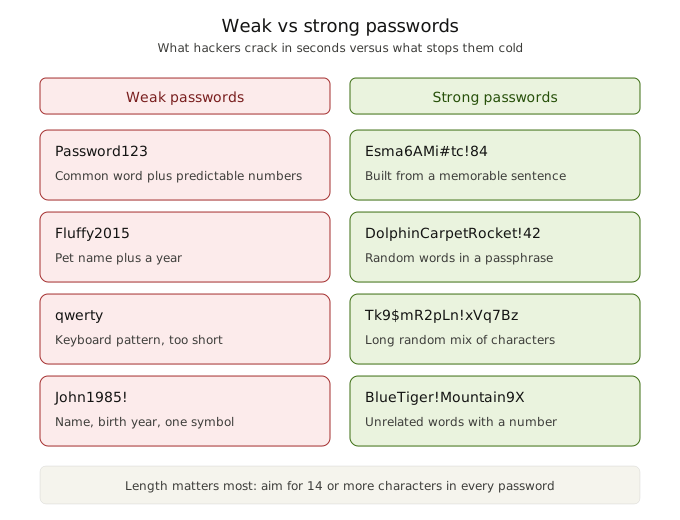
Avoid names, birthdays, pet names, or favorite sports teams. If you have ever posted the word on social media, do not use it in your passwords.
4. Avoid Patterns
Skip common formats like:
- Name + 123
- Date + !
- Single dictionary words
- Repeating characters
- Simple sequences like abcdef or 123456
5. Use a Sentence or Memory Trick
Turning a memorable sentence into a strong password is one of the easiest ways to make a password both secure and memorable.
Example sentence: Every single morning at 6 am I pound the coffee!
Converted password: Esma6AMi#tc!
6. Consider a Passphrase
A passphrase uses several random words strung together. Because they use dictionary words, they should be longer, ideally 16 to 20 characters. More characters always means better protection. Also remember that spaces count as characters and are allowed for most general passwords.
Example: DolphinCarpetRocketWindow!
When Should You Change Your Passwords?
In the past, people were told to change their passwords frequently. Times have changed, and new guidance from NIST and other security organizations states that if your password is strong, you do not need to change it unless you suspect compromise or elevated risk. Me personally, I sleep better at night changing my important passwords every so often.
Change your password immediately if:
- You think someone may have seen it
- A service you use suffers a breach
- You reused it somewhere
- You shared it and no longer want that access to remain
- You logged in on a device you do not trust
Never Reuse Passwords
Reusing passwords is one of the biggest security mistakes. If a hacker gets into one account, they can often get into everything else that uses the same password. Unique passwords also limit the damage if credentials are ever captured over an unsecured connection, which is one of many reasons securing your home Wi-Fi matters as much as your passwords themselves.
Always use unique passwords for:
- Banking
- Cloud storage
- Social media
- Shopping accounts
Use a Password Manager
Instead of remembering dozens of long passwords, use a password manager. Learn exactly how password managers work if you are new to the concept. It stores them securely and generates new ones for you. NordPass is a great example because it:
- Syncs your passwords across devices
- Stores them securely
- Helps generate strong passwords
- Detects reused or weak passwords
- Is easy to use regardless of technical skill
- It’s built so that only you can see what’s in your password vault
For the full breakdown, see my NordPass Review: Security, Features, Value.
A password manager lets you use extremely strong, unique passwords without needing to memorize them all. It also keeps everything synced across your devices so you always have what you need.
Use 2FA (Two-Factor Authentication)
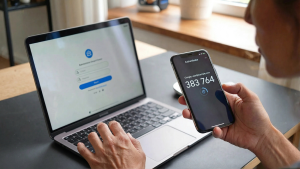
Using 2FA adds a second form of authentication when logging in. It is often thought of as: something you know (your password) and something you have (your phone). For example, a second form of authentication might be a code sent to your phone as a text or a code from an app like Google Authenticator. If you want a simple walkthrough of how it works and how to set it up, check out my Two-Factor Authentication 101 guide.
Some organizations also refer to this as MFA (multi-factor authentication), which roughly means the same thing, except MFA is not limited to only two factors. MFA simply means two or more forms of authentication.
With both 2FA or MFA, even if you fell for a scam and gave your password to a hacker in another country, they still would not have the additional factor (like a code from your phone) and would not be able to sign in as you.
Enable 2FA whenever possible, especially for:
- Your bank
- Your email
- Cloud storage accounts
Avoid Saving Passwords in Browsers
Avoid saving your passwords in your browser whenever you can. Browser password tools are convenient, but they aren’t built with the same focus on security features, monitoring, or cross-device protection that dedicated password managers offer. Some malware is even designed to pull saved passwords straight from a browser, which is another reason to avoid relying on it. Again, a password manager like NordPass gives you a safer and more reliable way to store everything.
How to Remember Strong Passwords
If you are not using a password manager, try:
- Using a memorable sentence
- Using a long passphrase
- Avoid storing passwords in Notes apps, documents, or email drafts
- Avoid writing them on sticky notes on your desk
Final Thoughts
Your passwords decide who gets into your digital kingdom and who stays outside the gates. After two decades of working in physical security as a Certified Registered Locksmith and watching the parallel rise of digital threats, I can tell you that the principles are identical. A strong lock only works if you use it, maintain it, and do not hand out copies of the key. Passwords work the same way.
Start with the basics this week. Pick your three most important accounts, your email, your bank, and your main cloud storage, and upgrade those passwords first. Install a password manager so you never have to remember another login again. Turn on two-factor authentication on every account that offers it.
Good password hygiene is not about being paranoid or turning your online life into a chore. It is about removing easy opportunities for attackers and making yourself a much harder target than the average person. Most account compromises do not happen because someone was specifically targeted. They happen because weak or reused passwords made it easy.
Treat your passwords like the guardians of your realm and they will serve you well. A little effort up front goes a long way toward keeping your accounts, your information, and your digital life safe for the long term.
Once your passwords are locked down, the next step is passkeys. They take security even further by replacing passwords entirely on the sites that support them. Our guide on what passkeys are and how to set them up is a good next read.
Ready to See Where Your Online Security Stands?
Take the free assessment now and receive personalized security recommendations in minutes. No signup required. Completely free. No gimmicks.
Explore more Online Security guides for related tips, tools, and reviews.
Password Security FAQs
What is the most secure type of password?
The most secure passwords are long passphrases that combine random, unrelated words with numbers and symbols. A 20-character passphrase like “BlueDolphin!RocketCarpet7” is far more secure than a short complex password like “P@s$w0rd!” because length is harder for attackers to crack than complexity alone.
How long should a password be in 2026?
A password should be at least 12 characters long, but 14 to 16 characters is much safer. For important accounts like email, banking, and cloud storage, aim for 16 to 20 characters. The longer your password, the exponentially harder it becomes for attackers to crack.
Is it safe to use a password manager?
Yes, reputable password managers are much safer than reusing passwords or writing them down. They use strong encryption so that even the company that makes the software cannot see your passwords. The only password you need to remember is your master password, which should be long, unique, and never reused anywhere else.
What is the difference between 2FA and MFA?
2FA (two-factor authentication) requires exactly two forms of verification to log in, usually your password plus a code from your phone. MFA (multi-factor authentication) is the broader term and can include two or more factors such as a password, a code, a fingerprint, or a security key. Both add a critical extra layer of protection beyond just a password.
How often should I change my passwords?
Current guidance from NIST says you do not need to change strong, unique passwords on a regular schedule. Change them immediately if you suspect a compromise, if a service you use is breached, or if you reused the password somewhere. For high-value accounts like banking and email, changing them every 6 to 12 months adds extra peace of mind.
What makes a password weak?
A password is weak if it is short (under 12 characters), uses common words, contains personal information like your name or birthday, follows a predictable pattern like “Password123”, or is reused across multiple accounts. Hackers use tools that test millions of these common patterns in seconds.
Can hackers really guess my password?
Yes, if your password is weak. Modern attack tools can test billions of password combinations per second against stolen password databases. They also try lists of leaked passwords from past breaches. However, a long, unique, random password combined with two-factor authentication makes your account practically impossible to crack.
Strong passwords are still one of the most important parts of online security. If this guide helped, share it with someone still using weak or reused passwords.

Michael Kendrick
Director of IT and former Certified Registered Locksmith with 27 years in technology and cybersecurity. Practical, everyday guidance to help you protect everything from the locks on your doors to the logins on your accounts.
Keep Learning: Related Security Guides
What Are Passkeys? How They Work and Why They Matter (2026)
Passkeys are replacing passwords across the web, and for good reason. Learn what they are, how they work, and how to start using them to lock down your accounts today.
Two-Factor Authentication 101: Your Second Line of Defense
Two-factor authentication (2FA) explained in plain language. Learn what it is, how it works, which method is strongest, and how to set it up on your most important accounts in minutes.
Password Managers 101: What They Are and How They Work
Not sure what a password manager is or how it keeps your passwords safe? This plain-language guide breaks down exactly how they work, what encryption means for your security, and how