
Quick Answer: Passkeys are considered more secure than passwords. Instead of typing something that can be stolen or guessed, your device proves it’s you using your fingerprint, face, or PIN, without ever handing anything over that a hacker could steal.
Table of Contents
If you’ve logged into Google, Amazon, or your iPhone lately and noticed you didn’t actually type a password, there’s a good chance you used a passkey without realizing it. Passkeys are the biggest change to how we log into things in decades, and they’re already on the devices most people carry in their pocket.
So what exactly is a passkey, how does it work, and should you start using them? This guide breaks it all down in plain English, no technical background required. By the end, you’ll know exactly what a passkey is, why it protects you better than any password can, and how to set one up on your most important accounts today.
What Is a Passkey?
A passkey is a secure digital security key that replaces your password entirely. Your device creates a unique key, stores it locally, and verifies your identity using your fingerprint, face scan, or PIN. Nothing is transmitted that a hacker could steal, because websites only store a useless public key while the private key never leaves your device.
To unlock that key and actually log in, you use something you already do every day, like scanning your fingerprint, using Face ID, or entering your device PIN. That’s it. No password to remember, no password to forget, and nothing a hacker can steal from a website’s database.
Think of it this way. A regular password is like writing your house key code on a sticky note and handing it to every business you visit. If one of them loses that note, anyone can get in. A passkey is more like showing your face at the door. You prove you’re you, nothing gets handed over, and there’s nothing for a thief to walk away with.
Why Are Passwords Getting Replaced?
Passwords have been the standard way to log into things for decades, but they’ve always had a fundamental problem. They’re a shared secret. When you create a password and hand it to a website, that website has to store it somewhere. And when websites get hacked, those stored passwords get stolen.
According to CPO Magazine, a 2022 report by threat intelligence firm Digital Shadows found over 24 billion stolen username and password combinations circulating on the dark web, a 65 percent increase from just two years prior. And that number grows yearly. If you’ve ever reused a password (and most people do), one breach can unlock multiple accounts.
Pro-Tip: If you have five online accounts and used even slightly similar passwords across them, there’s a real chance at least one is already sitting in a criminal’s database right now. Have I Been Pwned lets you check your email address for free in about five seconds. It’s worth a look.
If you want to find out whether your accounts have already been caught in a breach, our guide on how to tell if your email has been hacked walks you through it step by step.
Criminals take those stolen username and password combinations and try them on hundreds of other websites automatically. This is called credential stuffing, and it’s why one breached site can lead to your bank account, email, or streaming service being compromised if you reused the same password. When that happens it is called an account takeover, and it can happen within minutes of a breach hitting the dark web.
Passkeys solve this problem at the root. With passkeys, no shared secret is transmitted between your device and the server. The website only stores a public key, which is useless to anyone who steals it, while the private key that actually authenticates you stays on your device and never leaves it.
Here’s a quick look at how passkeys stack up against the ways most people currently protect their accounts.
| Feature | Passkey | Strong Password + 2FA | Passphrase | Basic Password |
|---|---|---|---|---|
| Security | ||||
| Phishing resistant | Yes, works only on the real site | Partial, you can still be tricked | No, can be entered anywhere | No |
| Stolen in a data breach | No, private key never leaves your device | Password hash can be cracked | Yes if stored on server | Yes |
| Brute force / guessing | Not possible | Very difficult with long password | Very difficult | Common attack method |
| Credential stuffing risk | None, nothing to reuse | Low with unique passwords | Possible if reused | High |
| Usability | ||||
| Something to remember | Nothing at all | Yes, complex password | Yes, multiple words | Yes, often forgotten or weak |
| Login speed | Very fast , one tap or glance | Moderate, password + 2FA code | Moderate, typing required | Fast but insecure |
| Works across devices | Yes, syncs via iCloud / Google | Yes, with a password manager | Yes, but you still type it | Yes |
| Setup & Support | ||||
| Setup difficulty | Very easy | Moderate, needs password manager + 2FA app | Easy | Easy (but not safe) |
| Website support in 2026 | ~20–25% of top sites, growing fast | Universal | Universal | Universal |
| If you lose your device | Restore from iCloud / Google backup | Reset password, use backup codes | Reset password | Reset password (often weak again) |
| Overall recommendation | Use whenever available | Best fallback option | Better than a basic password | Avoid if possible |
How Do Passkeys Actually Work?
The math behind all of this is called public key cryptography, but you don’t need to understand how it works to use it safely. Here’s the basic idea.
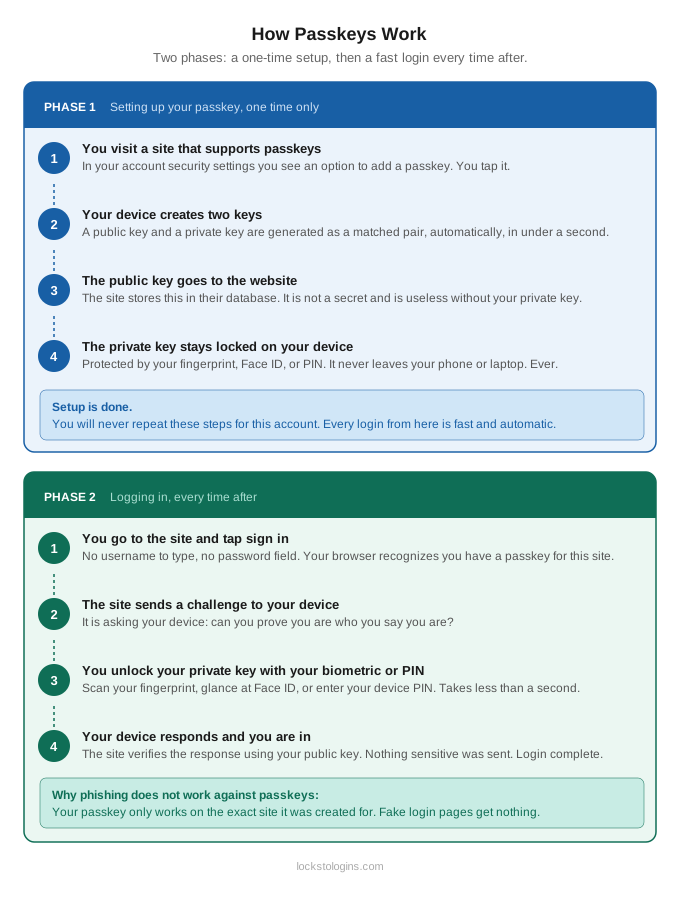
When you set up a passkey for a website, your device creates two things: a public key and a private key. These are a mathematically linked pair. The public key goes to the website. The private key stays locked on your device and never goes anywhere.
When you sign in later, the server sends a challenge to your device, essentially asking it to prove it holds the correct private key. Your device uses your biometric or PIN to unlock that private key and respond to the challenge. This type of login is called biometric authentication, meaning it uses something physical about you, like your face or fingerprint, rather than something you memorize. No shared secret is transmitted, and the server never learns what your private key is.
The technology behind all of this is called WebAuthn, which stands for Web Authentication. It’s a standard built and maintained by an industry group called the FIDO Alliance (FIDO stands for Fast IDentity Online). Apple, Google, Microsoft, and hundreds of other companies are all part of this group and have agreed on how passkeys work, which is why a passkey works the same whether you’re on an iPhone, an Android, or a Windows laptop.
Where Are Your Passkeys Stored?
Passkeys can be stored in two places: on your device itself or synced across your devices through a password manager or your device’s operating system.
If you use an iPhone or Mac, your passkeys are stored in iCloud Keychain and automatically sync across all your Apple devices. If you use Android or Chrome, they sync through Google Password Manager. You can also store them in a third-party password manager like NordPass or 1Password if you want more flexibility.
The big takeaway here is that once you set up a passkey on one device, it follows you to your other devices automatically. You don’t have to set it up again from scratch on every phone or laptop you own.
Synced Passkeys vs Device-Bound Passkeys: What Is the Difference?
You may have heard the terms synced passkeys and device-bound passkeys thrown around. Here is the simple version.
A synced passkey is stored in your device’s cloud ecosystem, like iCloud Keychain or Google Password Manager, and automatically copies itself to your other devices. This is the type most everyday users will encounter. Set it up once and it follows you everywhere you are signed in.
A device-bound passkey, sometimes called a hardware passkey, lives only on one specific device or physical security key and never leaves it. This offers slightly higher security because there is nothing to sync or back up, but it also means if you lose the device, you lose the passkey. This option is more common in enterprise and high-security environments.
For home users, synced passkeys are the right choice. They are convenient, recoverable, and still far more secure than any password.
Who Supports Passkeys in 2026?
The largest consumer platforms including Google, Apple, Microsoft, and Amazon all support passkeys. Major financial services, social media platforms, and e-commerce sites have followed, and as of early 2026, roughly 20 to 25 percent of the top 1,000 websites support passkey authentication, with that number growing rapidly.
Some big names you can use passkeys with right now include Google, Amazon, Apple, Best Buy, CVS, PayPal, Coinbase, GitHub, and many more. The FIDO Alliance maintains a live directory at passkeys.directory if you want to see the full list.
The Big Security Win: Passkeys Can’t Be Phished
This is worth its own section because it’s that important.
Passkeys work only on the specific website or app they were created for. If a criminal sends you a fake login page that looks identical to your bank, your passkey simply will not work on it. Your browser and device verify the site’s identity automatically, so you cannot be tricked into handing over your credentials on a fake site.
That’s a problem passwords will always have, no matter how long or complex they are. If you type your password into a fake site, it’s gone. Passkeys make that attack completely impossible.
Now let’s look at how passkeys work visually, step by step.
You Still Need a Password Manager
Passkeys are growing fast, but most of the internet still runs on passwords. A good password manager covers both, storing your passkeys and generating strong unique passwords for every site that hasn’t caught up yet. It handles passkeys and the passwords for any site that does not support passkeys, which is still most of the internet. Popular password managers like 1Password, Bitwarden, and NordPass all support passkeys. Our guide breaks down everything you need to know.
What Happens If You Lose Your Phone?
This is the most common question people ask, and it’s a fair one.
If your passkeys are synced through iCloud Keychain or Google Password Manager, they are backed up in the cloud and will automatically appear when you sign into your account on a new device. You don’t lose access to your accounts just because you dropped your phone.
Apple’s iCloud Keychain recovery is specifically designed to be protected even against brute-force attacks, and Apple itself cannot access your stored keychain data because your credentials are encrypted with your own passcode.
That said, it’s still a smart idea to keep a backup login method available during the transition, like a strong password stored in a password manager. We’ll talk more about that in a moment.
Is a Passkey the Same as Two-Factor Authentication (2FA)?
Not exactly. Two-factor authentication (2FA) is when you log in with a password and then verify yourself a second time, like with a code texted to your phone or generated in an authenticator app.
A passkey actually replaces the password entirely rather than supplementing it. It is technically a single-factor authentication, but one that is cryptographically stronger than a password and traditional 2FA combined. The security comes from the combination of what you have (your device holding the private key) and what you are or know (your biometric or PIN to unlock it), all wrapped into one step.
So yes, passkeys are both simpler and more secure. That’s not a common combination in the security world.
For a full breakdown of how 2FA works and which apps to use, see our Two-Factor Authentication 101 guide.
Are Passkeys the Same as “Sign In with Google”?
Not quite, though it’s an easy thing to mix up. “Sign in with Google” uses Google as a middleman, so you’re trusting Google to verify your identity to another website. A passkey keeps everything between you and the site you’re logging into directly. There’s no third party in the middle, and your login works even if Google is down. Think of it as the difference between showing your ID to a bouncer who calls Google to verify it versus showing it directly to the business that issued it.
Ready to Set Up Your First Passkey?
Setting up a passkey takes less than two minutes on most platforms. Use the tab buttons below to select your platform and follow the step-by-step instructions. Keep in mind that software updates regularly, so screens and menu names may look slightly different than described, but the overall process stays the same.
★ Bookmark this page. The setup instructions below cover six major platforms and you may not want to do all of them in one sitting.
Last verified: July 2026
Google Account
Works on any device using the Chrome browser. You will need to be signed in to your Google account before you start.
- Go to myaccount.google.com and sign in if prompted.
- Click Security and sign in in the left sidebar.
- Click Passkeys and security keys.
- Click Create a passkey.
- Follow the on-screen prompts. Your device will ask you to verify with your fingerprint, Face ID, or PIN.
- Once confirmed your passkey is created and ready to use the next time you sign in.
Next time you sign in to Google you will be prompted to use your passkey instead of your password.
Apple iPhone / iPad
Requires iOS 16 or later. You will also need iCloud Keychain turned on and two-factor authentication enabled on your Apple ID. Passkeys sync automatically across all your Apple devices.
Step 1: Make sure iCloud Keychain is on
- Go to Settings and tap your name at the top.
- Tap iCloud, then tap Passwords and Keychain.
- Make sure the toggle is turned on.
Step 2: Set up a passkey for an account
- Open the website or app you want to add a passkey to and sign in with your existing password.
- Go to the account security or sign-in settings and look for a passkey option.
- When prompted to save a passkey tap Continue.
- Authenticate with Face ID or Touch ID when prompted.
- Your passkey is saved and will sync automatically to all your Apple devices.
On iPhone, passkeys are set up on a per-account basis through each app or website rather than from one central settings screen.
Microsoft / Outlook
Works for any Microsoft account including Outlook, Xbox, and Microsoft 365. If you are on a Windows PC your passkey will be saved using Windows Hello. If you have not set up Windows Hello yet, Windows will walk you through that first.
- Go to account.microsoft.com and sign in.
- Click Security in the left sidebar.
- Under Account Security click Manage how I sign in.
- Click Add another way to sign in to your account.
- Select Face, fingerprint, PIN, or security key.
- Follow the prompts and authenticate using your Windows Hello method such as your PIN, fingerprint, or face scan.
- Give your passkey a name and click Done.
You can manage and remove passkeys any time by returning to the Manage how I sign in screen.
Amazon
Best done on the Amazon website in a supported browser. If you are on a Windows PC your passkey will be saved using Windows Hello. If you have not set that up yet, Windows will walk you through it first.
- Go to amazon.com and sign in.
- Hover over Account and Lists in the top right and click Account.
- Click Login and security.
- Next to Passkey click Set up.
- Click Set up again on the next screen.
- Click Continue on the Windows Security prompt.
- Authenticate using your Windows Hello method such as your PIN, fingerprint, or face scan.
- Your passkey is saved and ready to use.
Amazon will offer your passkey as the default sign-in option the next time you log in.
PayPal
Available on the PayPal website. PayPal may prompt you to set up a passkey automatically when you log in. If you skip that prompt you can set it up manually using the steps below.
- Go to paypal.com and sign in.
- Click the gear icon in the top right to go to Settings.
- Click Security.
- Find the Passkeys section and click Manage.
- Click Add a passkey.
- Click Continue on the prompt that appears.
- Authenticate using your device method such as your PIN, fingerprint, or face scan.
- Your passkey is saved and ready to use.
PayPal is one of the easier setups. The whole process takes under a minute.
GitHub
Best set up on a desktop browser. GitHub may also prompt you to add a passkey automatically when you sign in, which is the quickest option if you see it.
- Go to github.com and sign in.
- Click your profile picture in the top right and click Settings.
- In the left sidebar under Access click Password and authentication.
- Under Passkeys click Add a passkey.
- If prompted verify your identity using your password or existing authentication method.
- Under Configure passwordless authentication click Add passkey.
- Authenticate using your device biometric or PIN when prompted.
- Give your passkey a name and click Done.
GitHub lets you add multiple passkeys, which is useful if you work across different devices.
What About Passkeys and Password Managers?
Synced passkeys can be stored in a password manager, either one built into your device’s operating system or a standalone manager like NordPass or Dashlane. Synced passkeys have the advantage of being available on any of your devices where the password manager is installed.
If you’re already using a password manager (and if you read our Passwords 101 guide, you know you should be), check whether yours already supports passkeys. Most of the major ones do. This also means you’re not locked into Apple or Google’s ecosystem if you prefer something cross-platform.
Password managers are also still important for the accounts that don’t yet support passkeys. Until every website catches up, you’ll want strong unique passwords for those, and a good manager takes that off your plate.
What If My Device Does Not Support Passkeys?
Most devices from 2019 or later support passkeys. On iPhone, you need iOS 16 or newer. On Android, version 9 or later works with most passkey implementations, though Android 14 or later is recommended for the best experience. On Windows, you need Windows 10 or later with Windows Hello enabled. It’s also worth reviewing what protection is running in the background while you upgrade your login security.
If your device is older than those thresholds, your best move is still a strong password combined with two-factor authentication while you plan your next upgrade. Passkeys are not going anywhere, so whenever you do get a newer device, you will be ready.
| Device / Platform | Minimum Required Version |
|---|---|
| iPhone / iPad | iOS 16 or later |
| Android | Android 9+ (Android 14 recommended) |
| Windows PC | Windows 10 with Windows Hello |
| Mac | macOS Ventura (13) or later |
| Chrome browser | Version 108 or later |
| Safari | Version 16 or later |
| Firefox | Version 119 or later |
| Edge | Version 108 or later |
Still not using two-factor authentication? It is still one of the best fallback tools available. Read our Two-Factor Authentication 101 guide to see how to set it up in minutes.
The Reality Check: Passkeys Aren’t Perfect Yet
No security technology is without its trade-offs, and passkeys are no exception.
The biggest practical limitation right now is support. Around 20 to 25 percent of major websites have passkeys available as of early 2026. That’s a lot, but it also means most sites still rely on passwords. You won’t be going fully passwordless anytime soon, and that’s okay.
Shared accounts can also get complicated. If you and your partner share a streaming login, passkeys don’t handle that the same way a shared password does. Apple’s passkey system, for example, works beautifully for individuals but is not designed for multi-person environments. Some third-party password managers handle this better, so it’s worth looking into if sharing logins is part of your life. Our Password Managers 101 guide covers everything you need to know about choosing and using one.
And finally, if you use an older device that doesn’t support biometrics or a modern PIN system, passkey support may be limited. Most devices from the last three to four years are fine, but it’s worth knowing.
Common Passkey Mistakes (and How to Avoid Them)
The biggest mistake people make is setting up a passkey and then deleting the backup login option right away. Until you’ve used a passkey successfully a few times and know your sync is working, keep your old password stored safely in a password manager as a fallback. Deleting it too soon can leave you locked out if something goes sideways during setup.
The second common mistake is setting up a passkey on just one device and assuming it will automatically appear everywhere. If you use both a phone and a laptop, take five minutes to verify your passkey is showing up on both. For Apple users, that means checking iCloud Keychain on your Mac. For Google users, check Google Password Manager in Chrome on your desktop.
Finally, some people set up a passkey and then get confused when a site still shows a password field first. Many sites show the password field by default and only offer the passkey option as a secondary prompt. Look for a button that says “Use passkey” or “Sign in another way” if you don’t see the passkey prompt automatically.
Is Your Login Security Up to Date?
Five questions. Less than a minute. Find out where you stand.
What About Shared Accounts and Family Logins?
This is one of the most common real-world frustrations with passkeys right now. Because a passkey is tied to your device and your biometric, it does not work the same way as a shared password that two people type.
If you and a family member share a streaming account or a household login, the simplest workaround right now is to use a third-party password manager that supports passkeys in shared vaults, like 1Password. That way the passkey is stored in a vault both people can access, and each person authenticates with their own fingerprint or face on their own device.
Apple’s built-in iCloud Keychain does not currently support shared passkey vaults, so if sharing logins is part of your household routine, a third-party manager is worth considering. This is one area where passkeys still have room to grow, but solutions already exist if you know where to look.
Final Thoughts
Passkeys are not just a new version of the password. They represent a genuinely different approach to logging in, one where you can’t forget your credentials, can’t be phished into giving them away, and don’t have to worry about them showing up in a data breach.
They’re the most significant improvement to everyday login security in a long time, and they’re already here. The rollout will take a few more years to reach every corner of the internet, but the big accounts that matter most, like Google, Amazon, and Apple, are ready right now.
The smart move is to start today. Set up a passkey on your Google account first since almost everyone has one and it takes under two minutes. Then work through Amazon, Apple, and PayPal. Keep your password manager running for everything else and stay consistent with good habits across the board.
Security is always about layers, and adding passkeys to yours is one of the best decisions you can make right now. And if identity theft is a concern beyond just your passwords, pairing passkeys with a credit freeze is one of the most underrated combinations in personal security.
Ready to keep going? Browse all of our Online Security guides for more practical tips, reviews, and tools to protect your digital life.

Ready to See Where Your Online Security Stands?
Take the free assessment now and receive personalized security recommendations in minutes. No signup required. Completely free. No gimmicks.
Passkeys FAQ
What is a passkey in simple terms?
A passkey is a way to log into a website or app without a password. Instead of typing something, you unlock your device with your fingerprint, face scan, or PIN, and your device handles the rest automatically and securely.
Are passkeys safer than passwords?
Yes, significantly. Passkeys cannot be stolen in data breaches because the sensitive part (your private key) never leaves your device. They also cannot be phished, meaning even fake login pages can’t steal them. They’re one of the most secure login methods available to everyday users right now.
What happens to my passkeys if I lose my phone or get a new one?
If your passkeys are stored through iCloud Keychain (Apple) or Google Password Manager, they sync to your account and can be restored on a new device after you log back in. You do not lose access to your accounts permanently if you lose a device.
Do I still need a password manager if I use passkeys?
Yes, for now. Not all websites support passkeys yet, so you’ll still need strong unique passwords for accounts that haven’t made the switch. A password manager handles both passkeys and traditional passwords, making it a smart thing to keep around.
Can someone use my passkeys if they steal my phone?
Not easily. To use a passkey, a person also needs to unlock it with your fingerprint, face, or PIN. Without that biometric or PIN, the passkey on your device is inaccessible. That’s a very different situation from a stolen password, which can be used immediately.
Can I use a passkey on a public or shared computer?
It’s not recommended for your primary accounts. On a shared device, you’d be asked to authenticate using your own device via a QR code scan, which is how passkeys can work cross-device. But for convenience and security, passkeys work best on devices you own and control.
Which sites support passkeys right now?
Major platforms including Google, Amazon, Apple, PayPal, GitHub, Best Buy, Coinbase, and many more already support passkeys. The FIDO Alliance maintains a live directory at passkeys.directory where you can check specific sites.
What if the site I need doesn't support passkeys yet?
Use a strong, unique password and enable two-factor authentication if the site offers it. A good password manager will generate and remember the password for you, so you don’t have to.
Are passkeys free to use?
Yes. Passkeys are built into your device’s operating system for free. iPhone, Android, Windows, and Mac all support them at no cost. Some password managers may charge a subscription fee, but the passkey technology itself is free.
Do passkeys work with all password managers?
Most major password managers now support passkeys, including 1Password, Bitwarden, Dashlane, and NordPass. If you’re using one of those, check its settings for a passkeys section. Some older or less common managers may not yet support them, in which case your phone or browser’s built-in system will handle passkey storage automatically.
Do passkeys work in all browsers?
Passkeys work in all major modern browsers including Chrome, Safari, Firefox, and Edge. The underlying WebAuthn standard is supported across browsers, so you are not locked into one browser or one operating system. Older browsers that have not been updated in several years may not support passkeys, which is another reason to keep your software current.
Passkeys are one of the most important security upgrades most people haven’t made yet. If this guide helped it click, share it with someone who still types their password every day.

Michael Kendrick
Director of IT and former Certified Registered Locksmith with 27 years in technology and cybersecurity. Practical, everyday guidance to help you protect everything from the locks on your doors to the logins on your accounts.
Keep Learning: More Security Guides
Two-Factor Authentication 101: Your Second Line of Defense
Two-factor authentication (2FA) explained in plain language. Learn what it is, how it works, which method is strongest, and how to set it up on your most important accounts in minutes.
Identity Theft 101: How to Protect Yourself
Identity theft affected over 1.1 million Americans in 2024 alone. This plain-English guide explains how identity theft happens, the warning signs to watch for, and the exact steps you can take

Password Security 101: The Keys to Your Kingdom
Your passwords are the keys to your entire digital kingdom. Learn how to build strong, memorable passwords, use a password manager, and add extra layers of defense with 2FA.